
Introduction
Imagine turning your wildest imagination into a high-quality photo or video just by typing a single sentence. No coding, no complex software, and no design skills required. Thanks to artificial intelligence, this is now a reality. If you want to master this futuristic tech, you need to learn how to use Canva Magic Media.
Whether you are a blogger, a social media manager, or a digital creator, this tool is going to completely change the way you create content. In this ultimate beginner’s guide, we will break down everything you need to know about Canva Magic Media and how you can use it to level up your creative game.
What is Canva Magic Media?
Canva Magic Media is an advanced AI-powered tool built directly into the Canva ecosystem that allows users to generate stunning AI images and short video clips using simple text prompts. Instead of spending hours searching for the perfect stock photo, you can now describe what you want, and the AI will build it for you in seconds.
By leveraging powerful text-to-image and text-to-video AI models, Canva Magic Media bridges the gap between your imagination and reality. It offers multiple artistic styles, ranging from hyper-realistic photography and cinematic art to anime and 3D graphics.
Step-by-Step Guide: How to Use Canva Magic Media
Getting started with this AI tool is incredibly easy. Follow these simple steps to generate your first AI artwork:
Step 1: Open Your Canva Dashboard
Log into your Canva account. Click on Create a design in the top right corner and choose your preferred layout (e.g., Instagram Post, YouTube Thumbnail, or Custom Size).
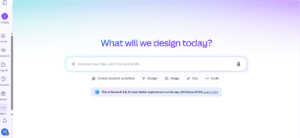
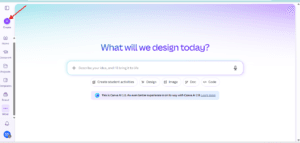
Step 2: Locate the Magic Media App
Look at the left-side vertical menu bar on your screen. Click on the Apps icon. In the search bar, type Canva Magic Media and click on the official app icon when it appears.
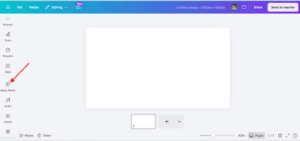
Step 3: Choose Your Format (Images or Videos)
Inside the app panel, you will see two tabs at the top: Images and Videos. Select the tab based on what you want to create today.
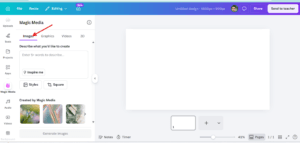
Step 4: Write a Descriptive Text Prompt
This is the most crucial and magical part of the tool. In the empty text box, clearly describe the exact image or video you want the AI to create for you.
Pro Tip: Instead of writing a generic, single-word prompt like
"a cat", write something highly descriptive and detailed. For example:"a cute fluffy cat wearing sunglasses sitting on a beach during sunset, cinematic lighting, 4k resolution". The more details you provide in your prompt, the better and more realistic your final artwork will be.
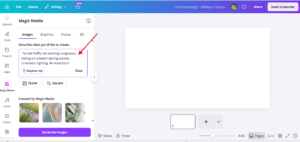
Note: You don’t need to include phrases like “give me a picture of” or “create an image of”. The AI already knows you want a visual. Simply focus on describing the subject, background, and style directly!
Step 5: Select Your Style and Aspect Ratio
Scroll down slightly to choose an artistic style (such as Film, Watercolor, Photo, or Cyberpunk). Next, pick your aspect ratio (Square, Landscape, or Portrait) so that the final output perfectly fits your project layout.
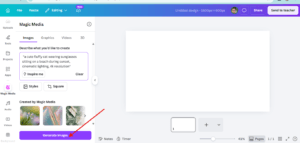
Step 6: Generate Your Artwork
Click the magic button that says Generate Image (or Generate Video). Within 10 to 15 seconds, Canva Magic Media will present you with 4 unique variations. Simply click on your favorite one to add it directly to your editing canvas!
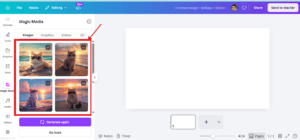
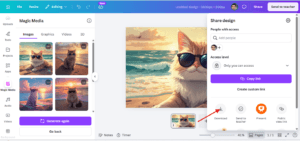
selected one
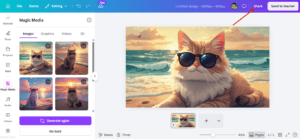
go to share buttom and download
Prompt Writing Tips for Canva Magic Media Success
To get the absolute best results from Canva Magic Media, you need to feed the AI high-quality instructions. Here are three quick rules for writing perfect prompts:
Be Specific with Details: Mention the subject, background setting, colors, and overall mood.
Define the Lighting: Use terms like “golden hour lighting,” “neon glow,” “studio lights,” or “dramatic shadows” to make your images pop.
Specify the Camera Angle: Try adding keywords like “close-up shot,” “macro photography,” or “bird’s-eye view” to give your AI images a professional look.
How to Make Money Using Canva Magic Media
AI tools aren’t just for creating cool designs—they can also become a powerful source of online income. If you are ready to turn your digital skills into cash, here are some of the best ways to earn money from the comfort of your home using Canva Magic Media.
To keep learning new and proven ways to make money online, make sure to keep following Global Earning Zone!
Sell Print-on-Demand Products: Use Canva Magic Media to generate unique, eye-catching patterns, quotes, or graphics. Upload these designs to websites like Redbubble or Teespring to sell t-shirts, mugs, and phone cases.
Launch a YouTube Shorts / Reels Channel: Generating unique videos takes time, but with the text-to-video feature, you can quickly create faceless storytelling channels, motivational videos, or cool visual effects that can be monetized.
Offer Freelance AI Art Services:Currently, many clients on Fiverr and Upwork are actively searching for custom blog images, book covers, and social media graphics. By using Canva Magic Media, you can deliver outstanding graphics in a fraction of the time.
If you want to know how to land jobs as a freelancer, we have previously written detailed articles about Fiverr and Upwork. You can check them out to kickstart your freelancing journey today.
Conclusion
The era of traditional graphic design is evolving, and tools like Canva Magic Media are leading the charge. It democratizes creativity, allowing anyone to become an artist or filmmaker with just a few keystrokes.
Whether you are looking to save time on your personal projects or trying to build a new online income stream, mastering Canva Magic Media is a skill that will serve you incredibly well in 2026 and beyond.
So, what are you waiting for? Head over to your dashboard, open the app, and start creating today. Which style are you going to try first? Let us know in the comments below!